
How to Use Text Formatting
Last updated: 2026-03-28·1 min read
Type / to open the slash menu and add seven block types: headings, lists, tables, code blocks, KaTeX equations, blockquotes, and dividers. Select text to reveal a floating toolbar for inline styles like bold, italic, underline, strikethrough, inline code, links, and highlights.
Adding blocks with the slash menu
Type / in the editor to open the slash menu. You can select the following block types:
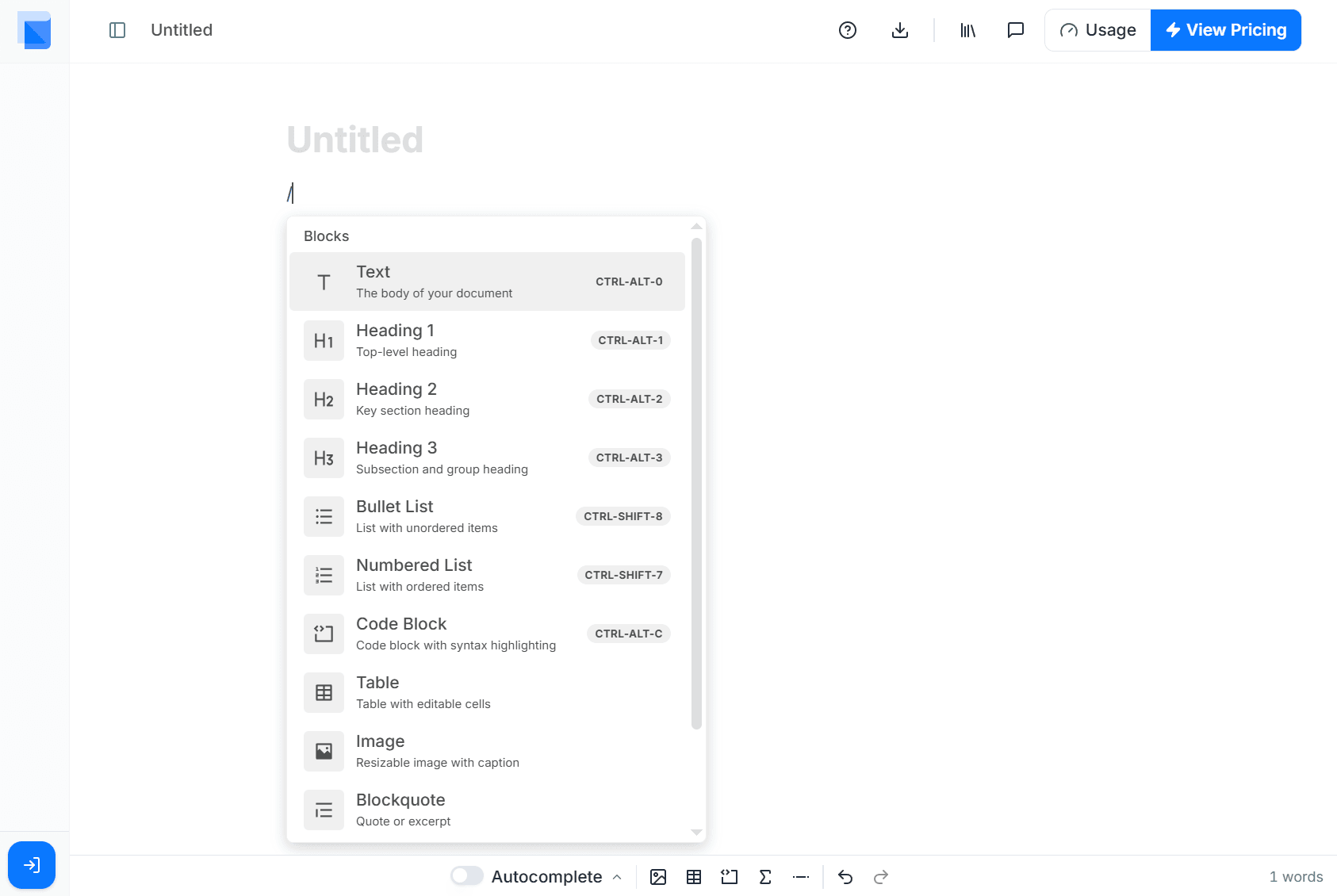
- Headings — H1, H2, H3 level titles
- Bullet list / Numbered list — Item listings
- Table — Data organization
- Code block — Display code or algorithms
- Equation (KaTeX) — Math formula input
- Quote block — Highlight quotations
- Divider — Section separation
Formatting toolbar on text selection
Drag to select text and a formatting toolbar appears. You can apply the following styles:
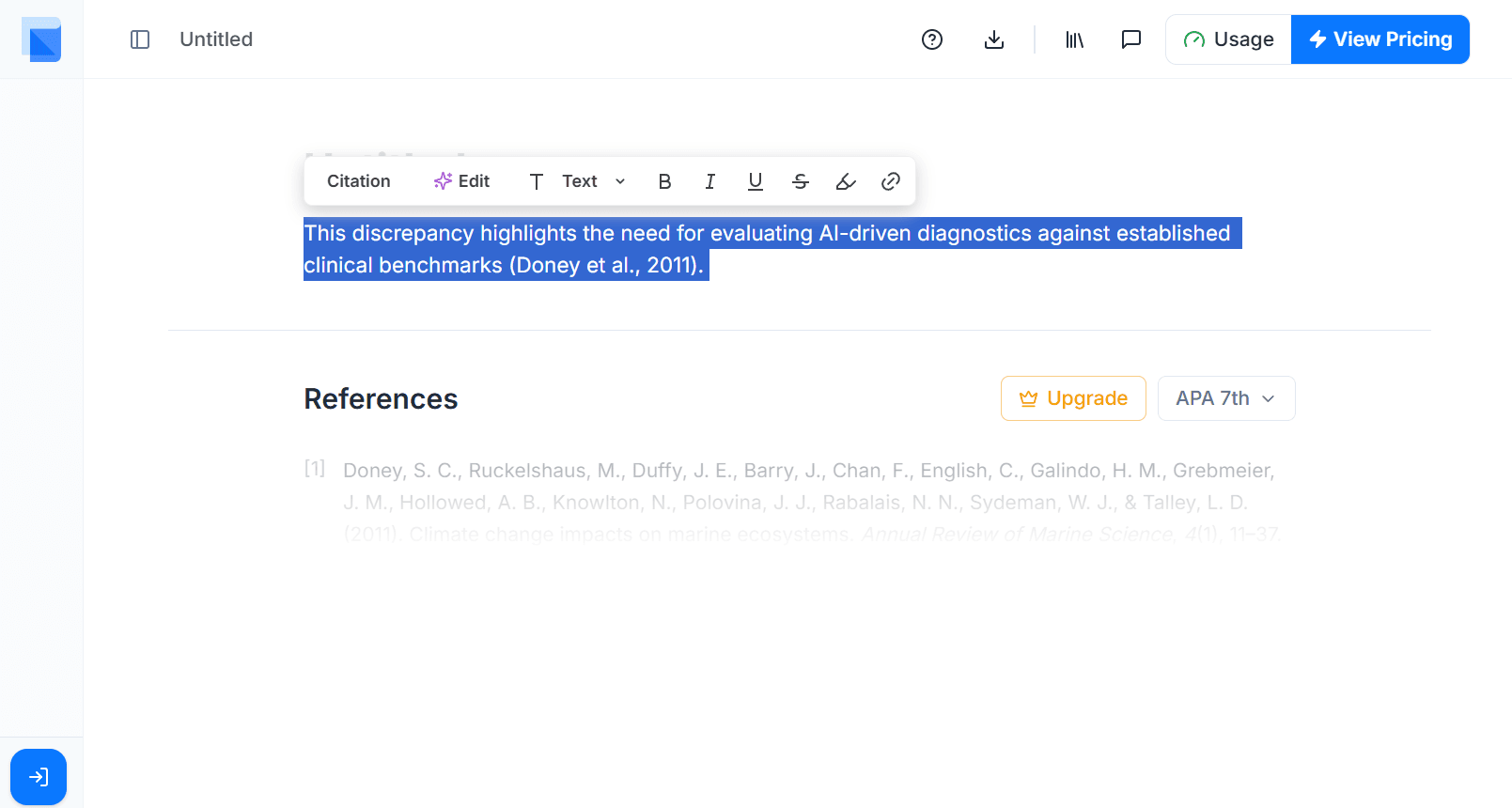
- Bold — Emphasize text
- Italic — Academic terms, variable names, etc.
- Underline — Highlight key content
- Strikethrough — Mark deletions
- Code — Inline code display
- Link — URL connection
- Background color — Text highlighting