
How to Attach a PDF in Chat
Last updated: 2026-07-21·2 min read
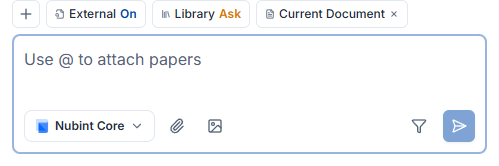
Click the paperclip button in the chat input to attach a PDF — the paper is saved to your library and connected to the conversation so AI can read it and answer. Images (JPEG, PNG, WebP) can also be attached, while DOCX files should be uploaded through the editor's import feature instead of chat.
How do you attach a PDF?
Click the paperclip-shaped attach button in the chat input and select a PDF file. It uploads and connects to the conversation at the same time.
Uploaded papers are also saved to your library, so you can reuse them in other chats later via Add Context.
What file formats can you attach?
You can attach PDFs and images (JPEG, PNG, WebP). For Word documents like DOCX, use the AI Paper Editor's document import instead of chat attachment.
| Format | How to attach |
|---|---|
| Paperclip button in chat | |
| Images (JPEG, PNG, WebP) | Image button in chat |
| DOCX | Document import in the editor |
When can't AI read an attached PDF?
Scanned PDFs that contain text only as images cannot be extracted, so AI may not be able to read them.
Check whether you can drag-select the body text in a PDF viewer. If you can't, it's a scanned image PDF — use an original PDF with a text layer instead.
Is there an upload limit?
PDF uploads have a monthly limit per plan. See the pricing page for details.